
Everything npad does
Classic Notepad behaviour, plus a short list of improvements that earn their place. Anything that changes how Notepad behaves is off until you turn it on.
Safe by design
The boring, important bit: npad is built so a bad moment never costs you a file.
- Crash recovery. A snapshot on your first edit, then every 30 seconds, offered back after a crash. Every window that was open comes back.
- Atomic saves. Written to a temporary file, verified, then renamed over the original.
- Encodings preserved. UTF-8, UTF-8 BOM, UTF-16 LE/BE and ANSI are detected and kept. A warning appears before an ANSI save would lose characters.
- Line endings preserved. CRLF, LF and CR are detected, shown in the status bar and convertible with a click or Ctrl+E.
- Large and binary file checks. A prompt before opening a very large file, and binary-file detection with Cancel, Open in npad, or Open with the default app.
- Deep undo. A 100,000-step undo and redo history, where Windows 10 Notepad’s undo is single-level.
- Write your text to a temporary file
- Verify what was written
- Rename it over the original
- If anything fails, your file is untouched
Crash-recovery snapshots are separate files, taken on your first edit and every 30 seconds.
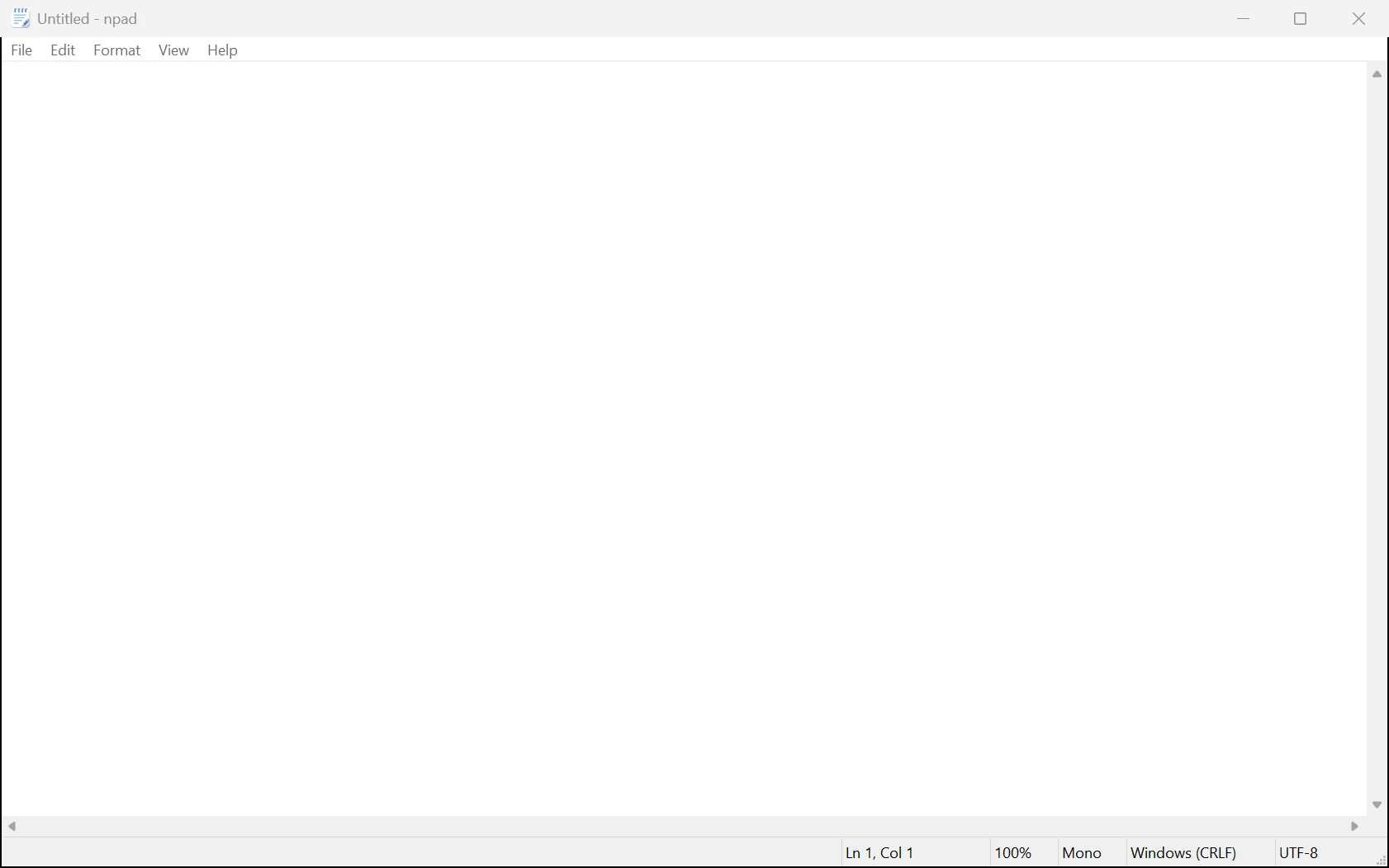
Classic editing, quicker
Everything you do in Notepad, the way you do it in Notepad.
- Find and Replace with direction, match case, whole word, wrap-around, a live match count, remembered terms and optional highlight-all.
- Go To Line (Ctrl+G), Time/Date (F5) and word wrap (Alt+Z).
- Clickable status bar with line and column, zoom, font mode, line ending and encoding.
- Drag and drop to open; Ctrl+Drop inserts a file at the caret. A recent files menu, and an optional Ctrl+N that opens a new window.
- Notepad manners. A notepad-style unsaved-changes prompt, always-visible scroll bars, and a first click into an unfocused window that acts immediately.
Looks, fonts and zoom
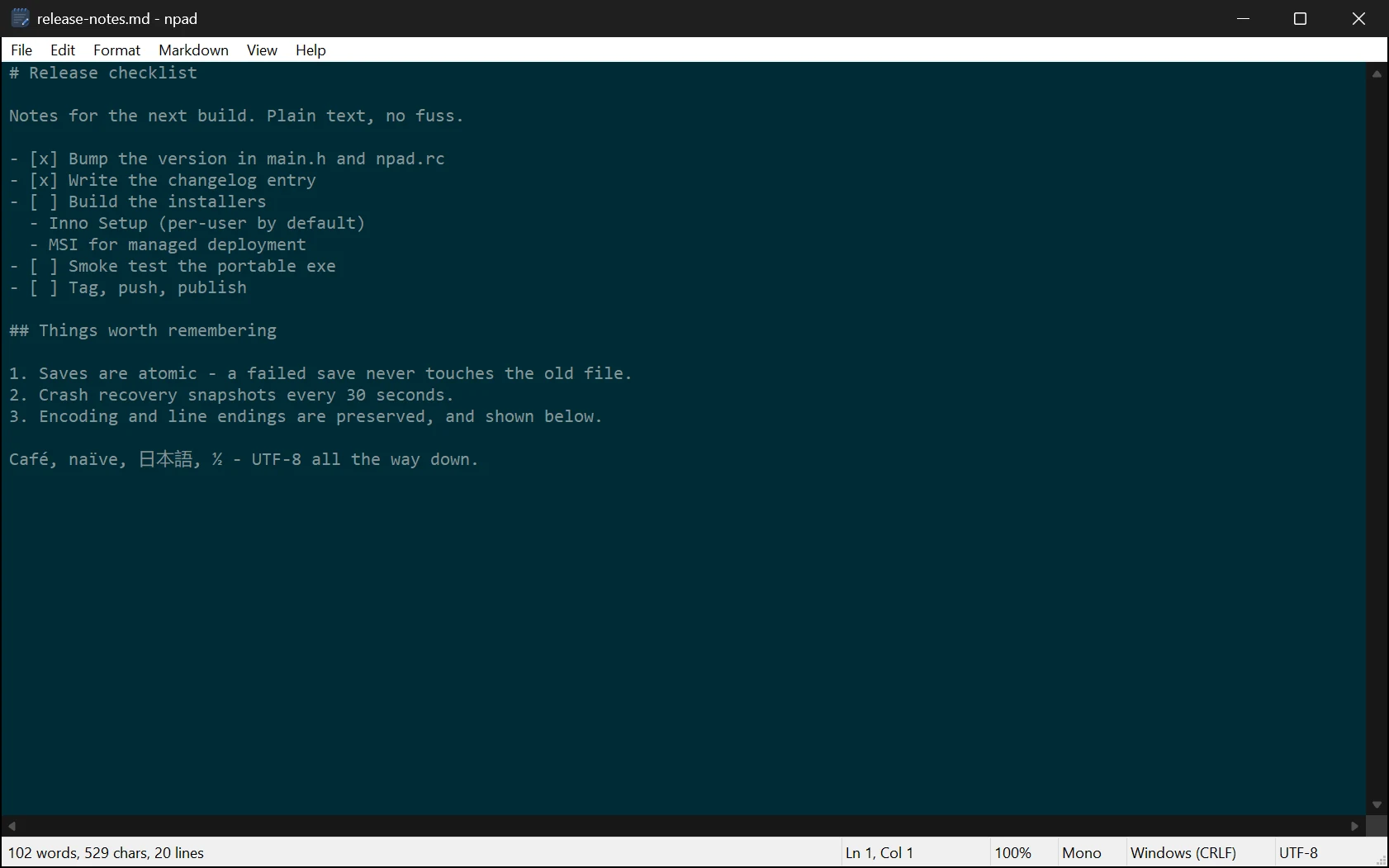
Light by default, like Notepad, and as dark or as Solarized as you like.
- Colour schemes. Light, dark, follow the system, or Solarized Light / Dark. Changes apply to every open window live.
- Themed chrome. Dark schemes colour the text area, title bar, scroll bars and drop-down menus.
- An icon that follows your setting. Light, dark, follow the system, or the classic icon.
- Per-window zoom and font (Ctrl+Scroll, Ctrl+M) with separate monospace and proportional fonts, configurable defaults and an OpenDyslexic option.
- Sensible windows. Opens large for your display, remembers position and size, and cascades new windows.
Printing
Print what you wrote, the way you’d expect it to come out.
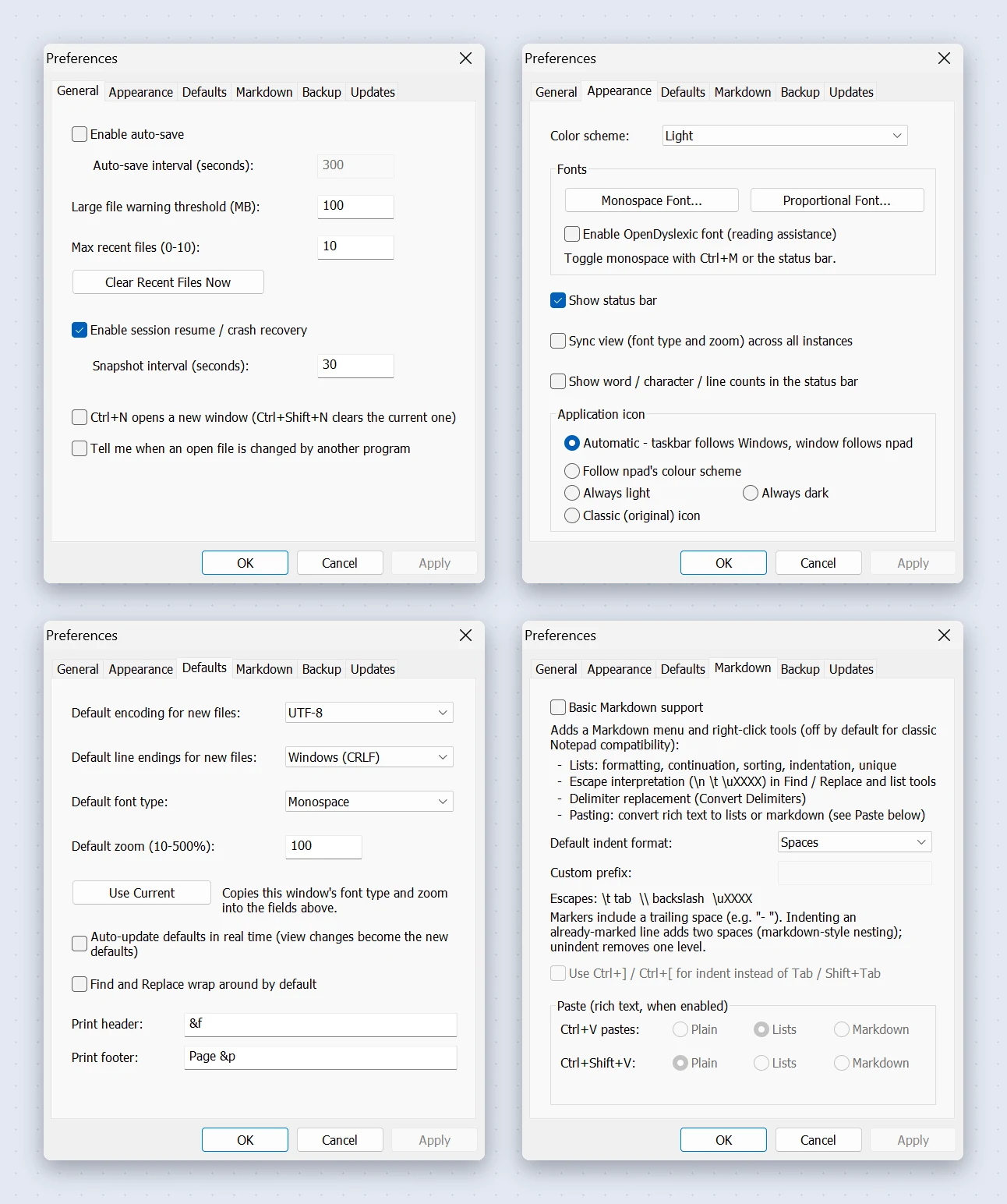
- Print and Page Setup (Ctrl+P) with notepad’s header and footer codes, editable in Preferences.
- Prints the document, not the window, in the font that window is showing.
- Print Preview (Ctrl+Shift+P) with paging, a two-page view and zoom, measured against your default printer so the preview wraps where the page does.
| Code | Prints |
|---|---|
&f | File name (the default header) |
&p | Page number (the default footer is Page &p) |
&d &t | Date and time |
&l &c &r | Left, centre and right alignment |
Edit them in Preferences > Defaults.
Optional extras (off by default)
Handy, but they change how Notepad behaves, so they wait for you to switch them on.
- Markdown list tools. Sort and Unique lines, Convert Delimiters, Indent/Unindent with list markers, Enter continuing a list, and cut line / paste above on Ctrl+X / Ctrl+V.
- Rich-text paste. Turn HTML clipboard content into lists or Markdown. Plain-text clipboards always paste plain.
- Auto-save with a configurable interval.
- Word, character and line counts in the status bar.
- Change notices. Be told when another program changes a file you have open, with reload, save as or keep editing.
- Update checks (notify, prompt or install), SHA-256 verified. npad never updates silently.
- Escape sequences (
\n,\t,\uXXXX) in Find and Replace.
Windows integration
It behaves like part of Windows, without taking anything over.
- On your PATH, so
npad file.txtworks in any terminal. - In “Open with” for every file type, like notepad.exe, without claiming a type it doesn’t own.
- File associations you choose, in five groups (text files are ticked by default), changeable later in Preferences > Associations.
- A
notepadalias for Win+R, which you can untick in setup. - JSON settings with export and import for backup or moving machines.
C:\> npad notes.txt
- Text.txt
- Markdown & documents.md .markdown
- Data.csv .tsv .json .xml .yaml .yml .toml
- Config.ini .cfg .conf
- Logs.log
The five association groups. Only text files are ticked by default; change them any time in Preferences > Associations.
Lean, on purpose
Small is a feature.
- A ~400 KB executable importing only 8 system libraries, loading the rest (update check, file dialogs) on first use.
- ~40 ms from process start to a usable window.
- One process per window. The cost stays linear.
- Native APIs, no bloated frameworks. Win32 on Windows, GTK 3 on Linux.
- No background services. The only network use is update checking: automatic checks are off until you enable them.
~400 KB
executable, 8 system libraries
~3.4 MB
RAM per window
30 windows
measured at 104 MB in total
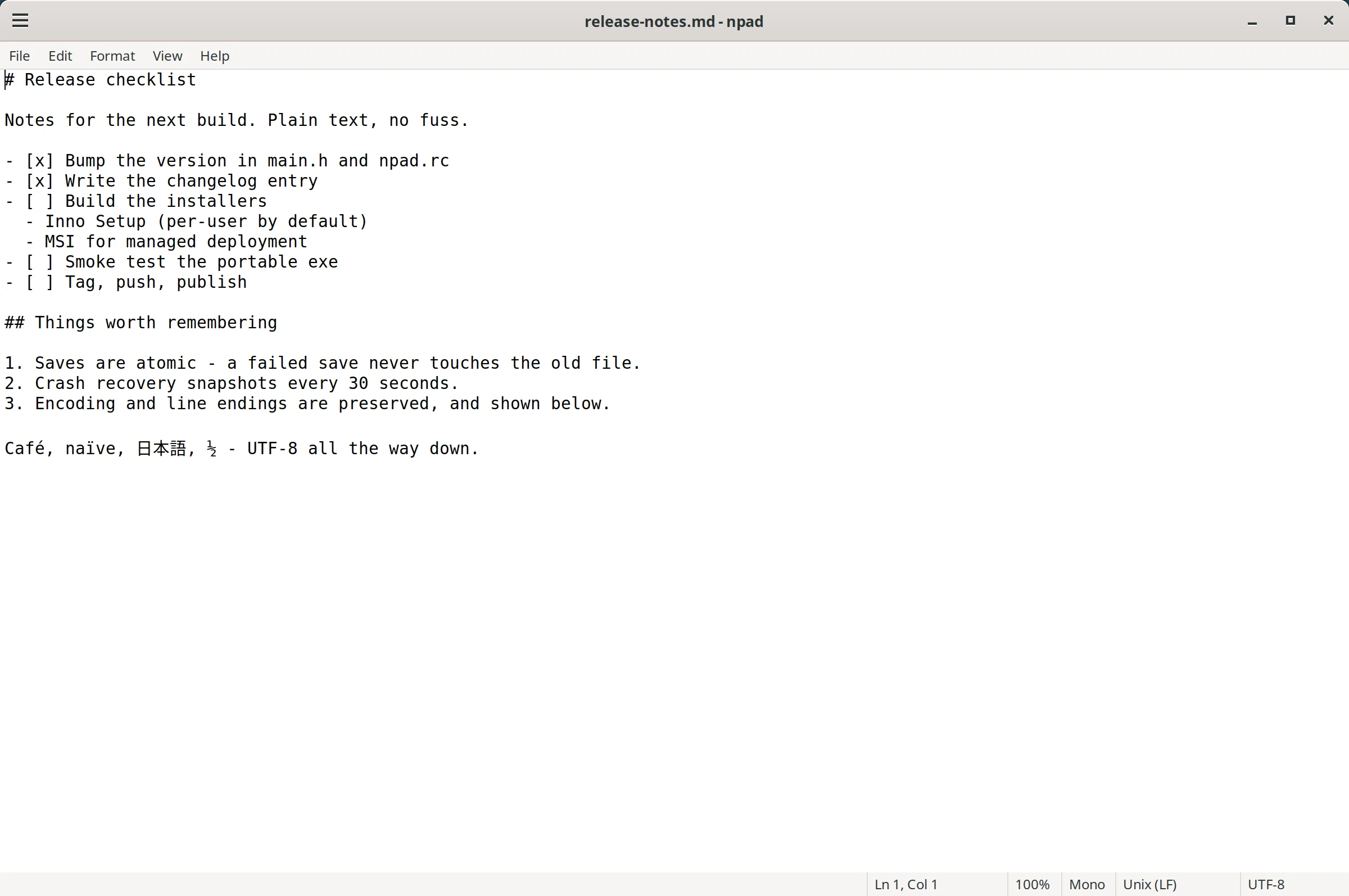
On Linux
A native GTK 3 build, first released in v0.34.0, installed from signed apt and dnf repositories so it updates with the rest of your system.
- One binary for both X11 and Wayland.
- Open and save with encodings and line endings kept, Find / Replace / Go To and printing.
- Open npad windows share settings changes live over D-Bus, and unsaved work is parked when you log out.
- Still to come: Preferences, the font picker and the Markdown tools. See the Linux port notes (opens in a new tab) for what is done and what is next.